
6 Practical Screenshot Tricks for Windows Laptops Without Third-Party Tools
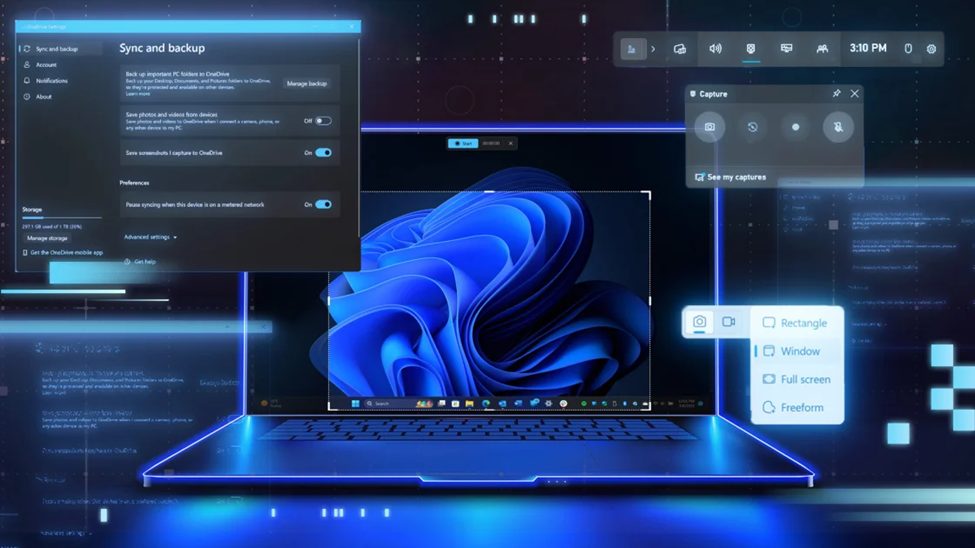
Taking screenshots is one of the most common tasks for laptop users, whether for work, study, or personal use. Referring to information from hkitblog, fortunately, Windows laptops come with several built-in tools and shortcuts that make capturing your screen quick and easy no need to install additional software. Here are six practical ways to take screenshots on Windows laptops.
1. Print Screen (PrtScn) Key
The simplest method is by pressing the Print Screen (PrtScn) key on your keyboard. This captures the entire screen and copies it to the clipboard. You can then paste it into applications like Microsoft Word, Paint, or Photoshop by pressing Ctrl + V.
While convenient, this method does not save the screenshot automatically, so you’ll need to paste and save it manually.
2. Alt + Print Screen
If you only want to capture the active window, press Alt + PrtScn. This is useful when you have multiple windows open but only need to capture one specific application. Like the basic Print Screen method, the image is copied to the clipboard, and you must paste it into another program to save it.
3. Windows + Print Screen
To capture the entire screen and save the screenshot instantly, press Windows + PrtScn. The screen will briefly dim, and the file will be automatically saved in the Screenshots folder under Pictures. This method is perfect for users who want a quick, saved copy without extra steps.
4. Snipping Tool
The Snipping Tool is a built-in Windows application that offers more flexibility. You can select different modes such as Free-form Snip, Rectangular Snip, Window Snip, or Full-screen Snip.
To use it, simply type “Snipping Tool” in the Windows search bar, open the app, and choose your preferred capture style. Once captured, you can annotate, highlight, or save the image directly from the tool.
5. Windows + Shift + S (Snip & Sketch / Snipping Tool Shortcut)
One of the most practical shortcuts is Windows + Shift + S. This brings up a snipping overlay, allowing you to select part of the screen to capture. The screenshot is automatically copied to your clipboard, and a notification will appear for you to open and edit it.
This method is highly versatile and especially useful for quickly sharing cropped screenshots in chats or emails.
6. Windows + Game Bar (Xbox Game Bar)
Primarily designed for gamers, the Windows Game Bar can also be used to capture screenshots of any activity. Press Windows + G to open the Game Bar, then click the camera icon or press Windows + Alt + PrtScn to capture the current window. Screenshots taken this way are saved in the Videos > Captures folder.
Windows laptops provide a variety of built-in methods for taking screenshots, from simple key shortcuts to flexible tools like Snipping Tool and Game Bar. Whether you need a full-screen capture, a specific window, or just a selected area, these six tricks make the process fast and efficient—without relying on third-party applications.
By mastering these shortcuts, users can streamline their workflow, enhance productivity, and save time when documenting, sharing, or saving important information on their screens.
Source: https://hkitblog.com/